How to Update GB WhatsApp
Updating GB WhatsApp is essential to access new features, optimize performance, fix errors, and ensure compatibility with new Android versions. But there are many people who do not like to update because they think their chats, images, or important conversations can be deleted due to that.
The positive thing is that it is very easy to update GB WhatsApp without uninstalling the app. If you download the new APK file over the existing one and make a backup of your chats. The only thing is to update properly and avoid deleting the app while installing the new version.
In this article, you will know the reasons for GB WhatsApp not being updated, the right procedure for backing up chats, and proper installation of the app.
Reasons Why GB WhatsApp Fails to Auto-Update
Unlike WhatsApp, GB WhatsApp can’t be found in the Google Play Store.
Distributed Outside the Google Play Store
All apps available in the Google Play Store get auto-updates in the background. But GB WhatsApp is an unofficial APK that doesn’t get any auto-updates from Google.
Updates Need to Be Manual for Better Compatibility
GB WhatsApp receives regular updates from developers to make sure that the app stays compatible with the WhatsApp server as well as any future Android updates. Or else, users may face several issues like:
- Issues in logging in or the verification process
- Application crashes and freezes
- Features that aren’t available
- Compatibility issues with new Android updates
- Increased risks of getting a temporary account warning
- Updates solve all these issues.
Getting Updates from Safe Sources
As there are no auto-updates, you must make sure that you are downloading the latest version of the APK from a trustworthy source. Checking the version number and release date helps ensure that the downloaded APK file is the latest one. It’s better to scan the file for any virus threats.
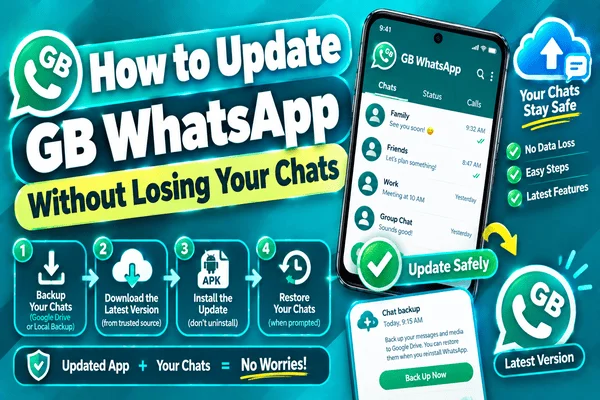
1 – Back Up Your Chats First
The first and foremost thing to do before updating GB WhatsApp is to perform a backup.
With these updates, your chats remain safe. However, certain unexpected situations, such as failure during the installation, may cause data loss. A recent backup will save your messages if there is something goes wrong.
Create a Local Chat Backup
To perform a local chat backup:
- Open GB WhatsApp;
- Go to the three-dot menu located in the top-right corner;
- Choose Settings > Chats > Chat Backup;
- Click on Back Up.
In this way, you can create a local backup that will help you recover your chats once the update is performed.
Backup Media Files
It is also crucial to remember to back up your media files. Make sure you copy the GB WhatsApp folder to another location, such as your phone's internal memory or SD card, or even transfer the folder to your computer. This will help you avoid unexpected troubles with the update.
Storage Space Check
It is very important to check that you have enough storage space available before proceeding with the update. Otherwise, the update process may be interrupted,d or the backup will not complete.
2 – Download the New APK Version
After backing up your chats, the next step is to download the updated version of the GB WhatsApp APK. However, GB WhatsApp is not in the Google Play Store;e, updates have to be done manually from a trusted website.
Download from a Trusted Website
Use a trustworthy website that gives:
- Version number of the current update
- Date of release
- Changelog
- HTTPS download link
- Anti-virus scan results
Avoid downloading from websites with fake download buttons, advertisements, and malicious APKs.
Check the APK before Installation
Ensure that before you open the APK file:
- Confirm the correct version number matches the latest release.
- The file correct size according to mention on the website.
- Scanned for viruses using virus scanning software.
- Make sure Complete downloaded the APK successfully.
Downloading a verified APK will increase the chances of successful installation.
3 – Install Over Existing App (no uninstall)
Mostly, there is no need for uninstallation before installing the updated version of GB WhatsApp. The process allows the Android OS to upgrade the old files without losing your data such as chats, media, and settings.
How to Update and Keep Your Data Safe
Here is what you have to do:
- Find the APK on your computer.
- Click on the APK file.
- Choose Update or Install when prompted.
- Wait until the process is done.
- Launch GB WhatsApp.
As a result, all your chats, media, and user data are available as it is before the update.
4 – Restore Chats If Needed
Usually, all updates will restore your chat history automatically. But if you find that your messages are not restored after an update, then use the backup made before installing the new update.
Restore Your Backup
If it is prompted during the setup:
- Enter your phone number.
- Let GB WhatsApp search for the available backup.
- Click Restore.
- Continue to wait until the restore process is completed.
- Launch the app and make sure that your chats have been restored.
It usually takes a few minutes to restore your backup, depending on its size.
Check Your Media Files
Once you restore your chats, ensure that your photos, videos, voice notes, and other media files are restored as well. If they are not, copy the backed-up GB WhatsApp folder to your phone.
What to Do If Update Fails
If the update does not install, don't get stressed out because, in most of the cases, update failure is due to simple problems which can be solved easily.
Check Available Storage Space
Make sure there is enough free storage on your device. So, the installation process can be completed without any interruption or problem.
Download the New APK
Sometimes, the download may get corrupted, causing installation problems. Download a new fresh APK file and try again.
Check for Android Compatibility
Make sure that you are using a version of GB WhatsApp that is compatible with your Android version. The older APK files won't work on Android 14 and Android 15.
Unknown Source Permissions
If Andriod blocks installation, make sure that your browser or file manager allows installations from unknown sources.
Restart the Phone
Restarting your device may help you overcome this problem.
Conclusion
Updating GB WhatsApp without losing your chats is easy if you follow all the correct steps. The most crucial one here will be creating a full backup of your chats before installing the new APK file. It will be necessary to check the free space on your device, download the latest APK file from a trustworthy website, and restore your backup if needed.